

- Send notifications to channels. Choose which projects, environments, tags, and events each channel hears about.
-
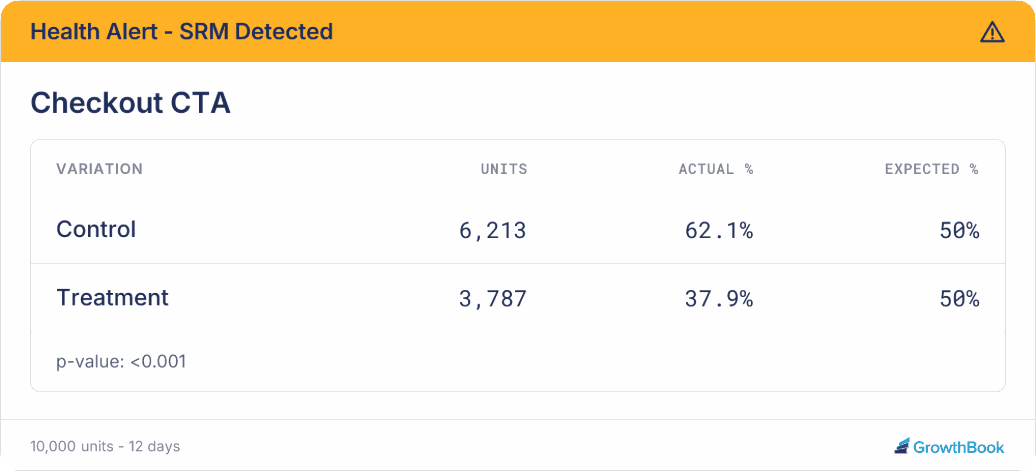
See experiment results in Slack. When an experiment starts, stops, or has a sample ratio mismatch (SRM), the notification is an image card instead of plain text. The stopped card charts each variation’s lift on the goal metric, and the SRM card compares actual and expected traffic, so people can read the outcome without opening GrowthBook. Everything else is a formatted text message.
This page covers the Slack app. If you set up Slack before the app was available, your incoming webhook connections still work. See Legacy Slack webhooks to manage them or move them to the app.
Requirements
- GrowthBook permission: You need the
manageIntegrationspermission. The Admin role includes it. To give it to someone else, use a custom role that includes the Integrations Full Access policy. See user permissions. - Slack permission: You need permission to install apps in your Slack workspace.
- GrowthBook plan: Any plan. Slack notifications aren’t a paid feature.
Connect your Slack workspace
- In GrowthBook, go to Settings → Slack. If Slack isn’t in your Settings menu, you don’t have permission to manage integrations. Ask an admin to connect Slack or give you access (see Requirements).
- Click Connect to Slack.
-
Slack asks you to pick a workspace and approve the GrowthBook app’s permissions. Click Allow.
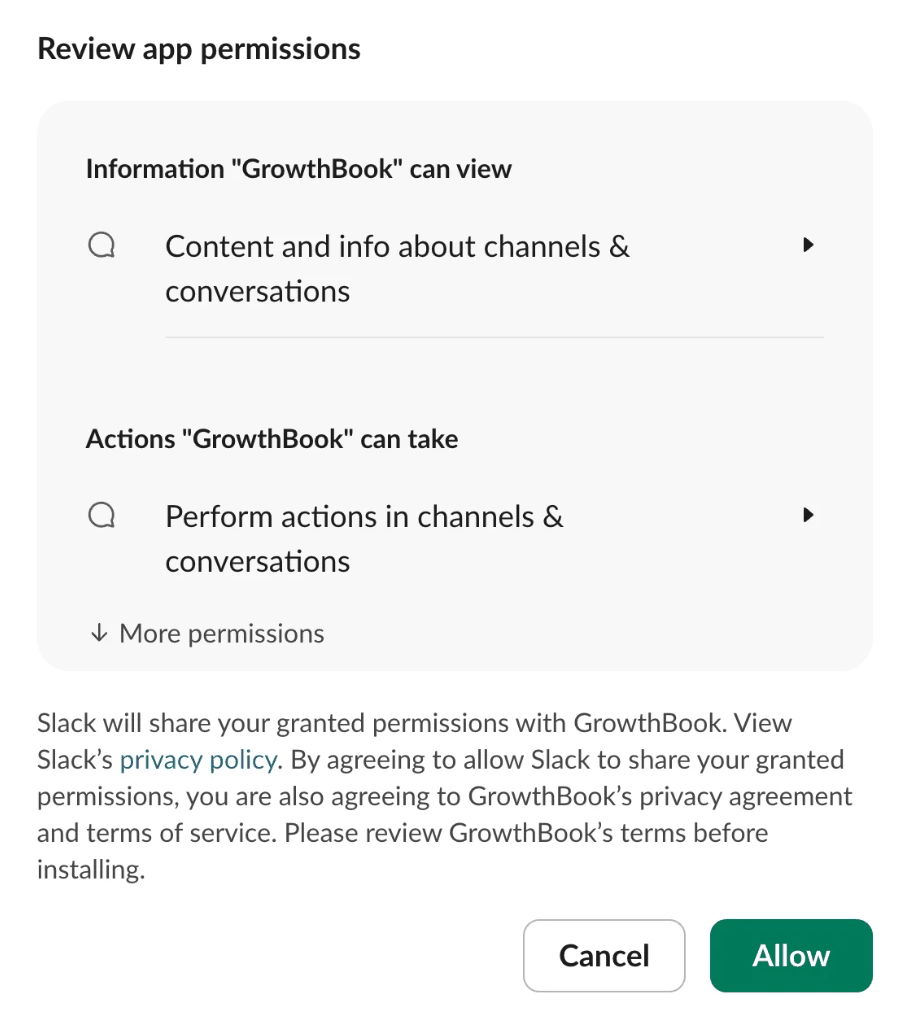
- Slack sends you back to GrowthBook. You’ll see Slack workspace connected successfully., and the Add a Slack Channel dialog opens so you can pick your first channel.
One workspace per organization. Each Slack workspace connects to exactly one GrowthBook organization, and each organization connects to exactly one Slack workspace. To move either side, disconnect the existing connection first.
Add a channel
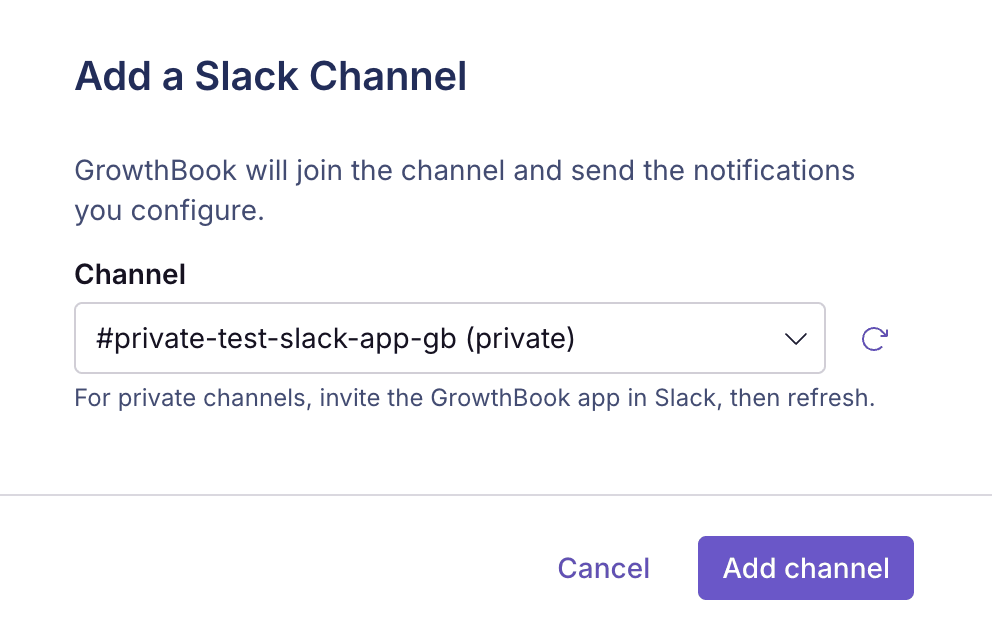
- On the Slack integration page, click Add channel.
- Search for the channel in the Channel field.
- Click Add channel.
-
In the private channel in Slack, run
/invite @GrowthBook. -
Back in GrowthBook, click the refresh button next to the Channel field. The private channel now shows up in the list.
Choose what each channel receives
Select a channel in the list on the left to open its settings. Changes don’t apply until you click Save settings.Scope
The Scope card limits which resources trigger notifications:- Projects
- Environments
- Tags
Events
Events are grouped into categories: Feature Flags, Experiments, Holdouts, Saved Groups, Constants, Configs, and SDK Connections. Turn a category on with its switch, then pick what it should send under Notify about:
Next to the dropdown, GrowthBook shows how many of the category’s events are selected, like 7 of 35. Click Show events to see or change exactly which ones. Turned-off categories don’t show this until you switch them on.
The recommended events for the two default categories are:
- Experiments: experiment started, stopped, ending soon, and stale; ship, rollback, and review decisions; and health warnings such as SRM.
- Feature Flags: revisions published or reverted; Safe Rollout ship, rollback, and unhealthy alerts; review requested; and changes requested.
Message format
The Message Format card controls how notifications look in the channel:- Light: an image card on a white background. This is the default.
- Dark: the same card on a dark background, for dark Slack themes.
- Text only: every notification is sent as a text message.
- Started: an experiment starts.
- Stopped: an experiment stops.
- Warnings: only sample ratio mismatch (SRM) warnings. Other experiment warnings are sent as text.
Send a test notification
- Open the channel’s actions menu (⋮) and choose Send test.
- Pick a Message type. A preview shows what will be sent.
- Click Send to #channel.
Manage channels
The channel’s actions menu (⋮) has these options:- Disable notifications / Enable notifications: pause or resume the channel without losing its settings. Click Save settings afterward.
- Send test: see Send a test notification.
- Delete channel: stop sending notifications to this channel and remove its settings.
Manage the workspace
Use the Manage workspace menu next to the workspace name:- Reconnect: run the Slack approval again. Do this if you see a Reconnect needed badge. The badge means the app needs permissions it wasn’t granted when it was installed, usually after a GrowthBook update.
- Disconnect: remove the workspace and all of its channel connections from GrowthBook.
Best practices
- Start with the recommended events — New channels already get the experiment and Feature Flag events most teams act on: launches, results and decisions, health warnings, published flag changes, Safe Rollout alerts, and review requests. Live with those for a while before adding more, so the channel doesn’t turn into noise people mute.
- Give each audience its own channel — Route notifications by who acts on them instead of sending everything to one channel. For example, send experiment results and decisions to a product channel, and Feature Flag changes and Safe Rollout alerts to the owning team’s engineering channel. Use the Projects filter so each team only hears about its own work.
- Make sure health warnings reach someone — Warnings (such as SRM) and Safe rollout unhealthy mean something may be wrong with live traffic. Send them to a channel someone watches, even if everything else goes somewhere quieter.
- Put review requests where reviewers are — If you use approval flows, Review requested and Changes requested are on by default. Send them to a channel your reviewers follow so drafts don’t sit waiting.
- Retire old webhooks — Once the app is working, delete any legacy Slack webhooks or Slack event webhooks posting to the same channels, so people don’t get every notification twice.
Troubleshooting
A private channel isn’t in the list. Run/invite @GrowthBook in the channel in Slack, then click the refresh button next to the Channel field.
“GrowthBook can’t join private channels itself.”
The app can only join public channels on its own. Invite it to the private channel with /invite @GrowthBook, then try again.
Notifications stopped arriving.
Check that the channel shows Active, not Inactive or Disabled. If the workspace shows Reconnect needed, choose Manage workspace → Reconnect. Then send a test notification to confirm delivery.
“Slack could not deliver the test notification.”
The app may have been removed from the channel or the workspace. Re-invite @GrowthBook to the channel, or reconnect the workspace.
“Slack did not return a workspace id.”
Your company uses Slack Enterprise Grid, and the app was installed across your whole Slack org. GrowthBook connects to one workspace at a time. Ask your Slack admin to install the GrowthBook app into a single workspace instead.
I’m getting duplicate notifications.
You probably still have a legacy Slack webhook or a Slack event webhook posting to the same channel. Delete the old connection once the app is working.